

[ Documentation ]
How to use Check Aaron
From your first project to connecting your own AI. New here? Start with Getting started.
Getting started
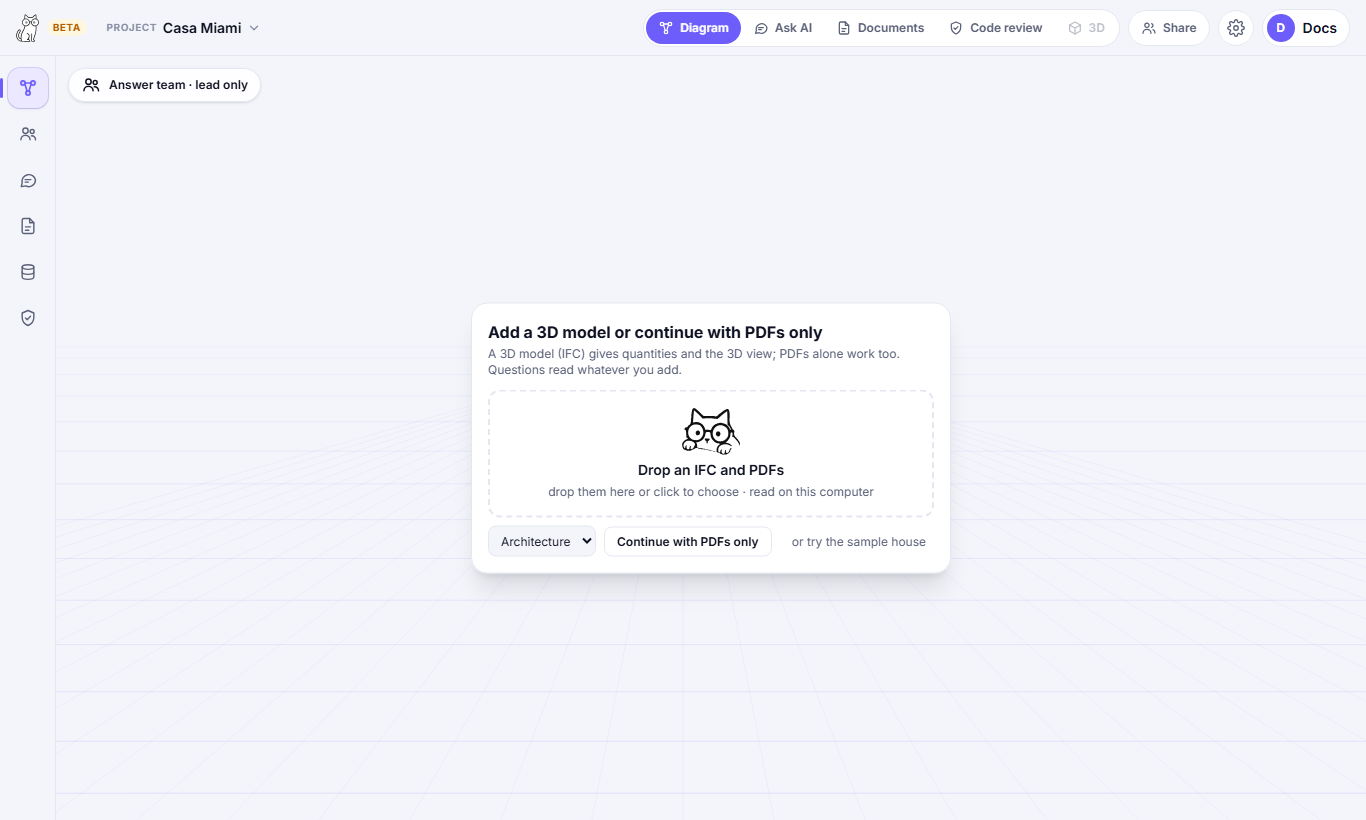
Check Aaron answers questions about your building from your own files: the IFC model, the project's PDFs and your repositories (cost tables, a city's code, zoning). Answers about your project come only from what you give it; it does not look up products, prices or alternatives on the web.
- 1Sign in (accounts are by invitation).
- 2Create a project from the Projects page.
- 3Add PDFs, an IFC model, or both: drop them on the start card. A project can be PDFs alone.
- 4Open the Ask AI tab and ask a question.
Files are read in your browser. Check Aaron keeps the file so you can open it again, and what was read from it.
The project workspace
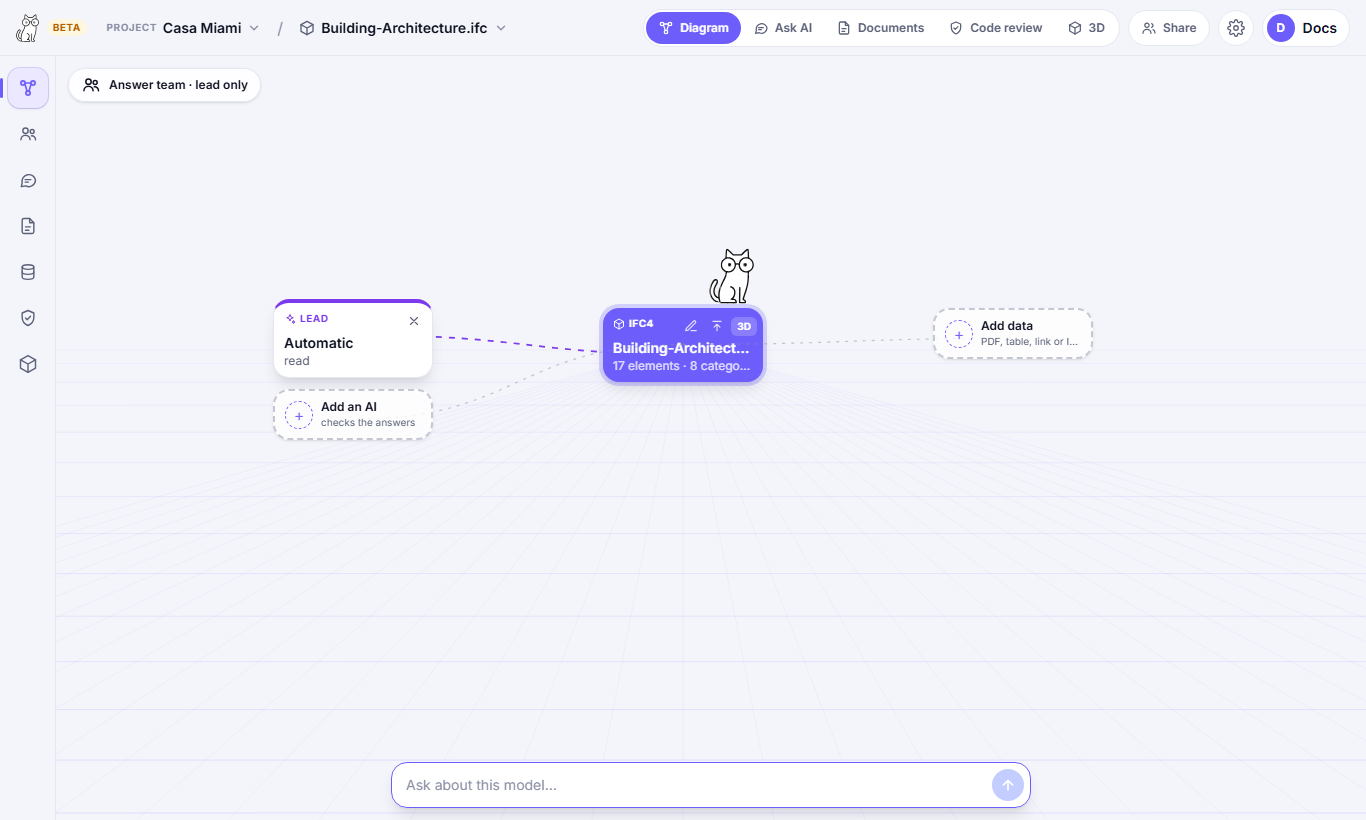
A project opens on its last model, or on its PDFs when it has none. The tabs across the top are the places you work:
- Diagram: the project at a glance. The answer team is on the left and the data (model, PDFs, repositories) on the right.
- Ask AI: the project's chats.
- Documents: the project's PDFs, their sheets, measuring and markup.
- Code review: the codes that apply to the project and what its sheets say about them.
- 3D: the model in 3D, with element selection, filters, a section cut and a measuring tool.
The menus in the top bar switch between projects and between a project's models, and Share invites other people. Uploading a new version of a model keeps its id, chat and links. Tabs a project can't use yet (3D without a model, for example) stay out of the way.
Asking questions
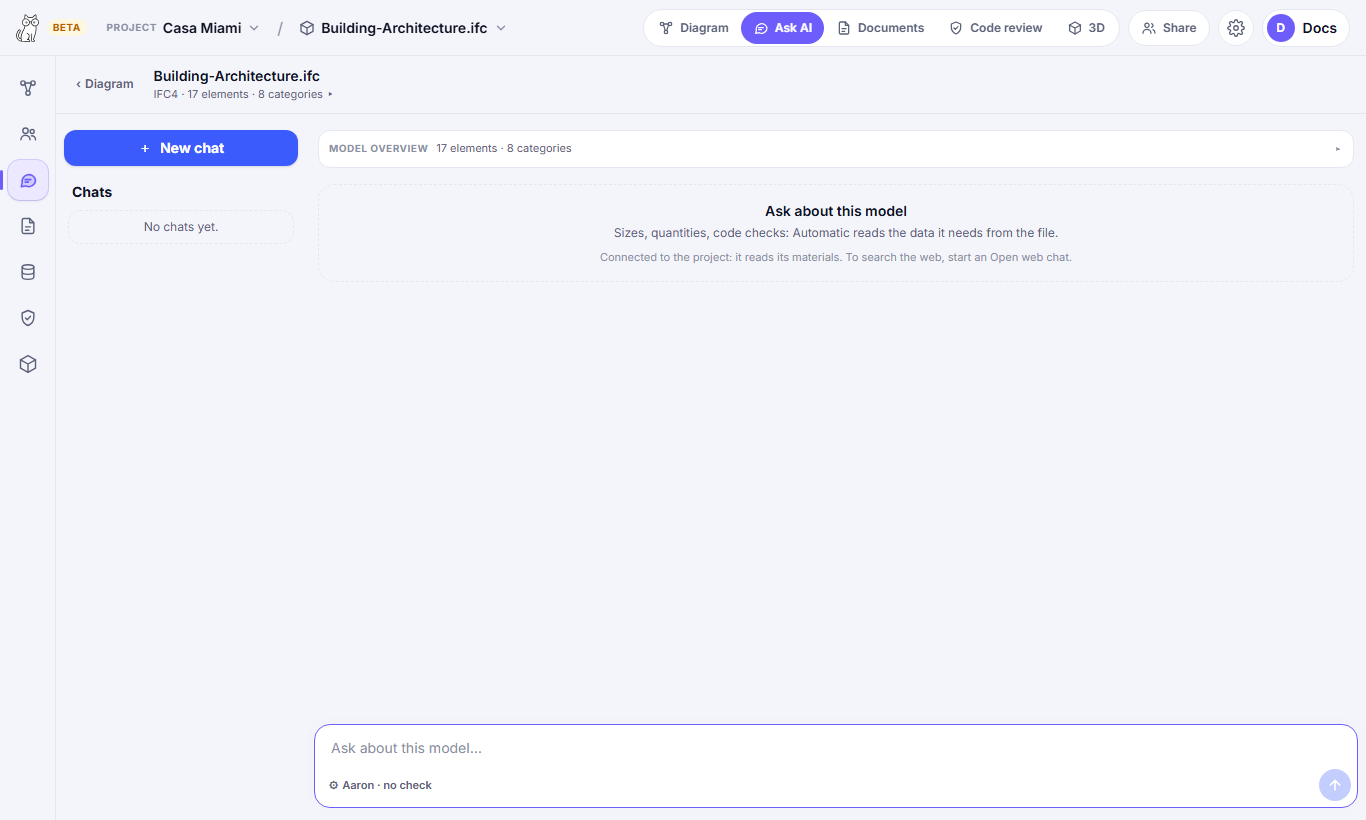
Type a question in plain language: counts, areas, quantities by material, facades by orientation, structure, MEP, quality checks, or anything your repositories hold. Each answer shows:
- The conclusion, first.
- A table with the figures behind it. A row tied to model elements is a link: click it and a 3D card beside the chat shows them.
- Where the model and the drawings disagree, both are shown.
A category, type or element the answer names (Windows, J01…) is a button that shows it in 3D. Select elements in 3D before asking to ask about just those: their sizes are measured on the geometry. On a PDF you can also ask about an area you outline, or tick Only this sheet to read that sheet alone.
Review requests (permit, code, ADA, egress, QA/QC, coordination between the sheets and the model) follow a known checklist and come back as a table of findings, each with its sheet and what to do.
When a size or area isn't written on the sheets, Check Aaron says so and offers a Measure button that opens the sheet with the right viewer tool.
The same question on the same files costs nothing the second time, because the answer is kept. Use “Ask again” to get a fresh one.
Every number is computed by Check Aaron from your files. The AI only reads the finished tables and writes the answer, so figures are never guessed.
Chats and history
New chat starts a clean conversation, as in Claude. Pick its kind:
- Project: connected to the project. It reads the model, the PDFs and the repositories.
- Open web: not connected to the project, so it reads none of its materials, but it can look things up on the web and shows its sources. Use it for general questions.
Your chats are listed in the left panel, grouped by kind. Reopen one to continue it. Delete a single question with the × beside it, or everything with Delete all history.
Questions in an Open web chat count against the same monthly allowance as the others, and never carry your project's files.
PDFs and drawings
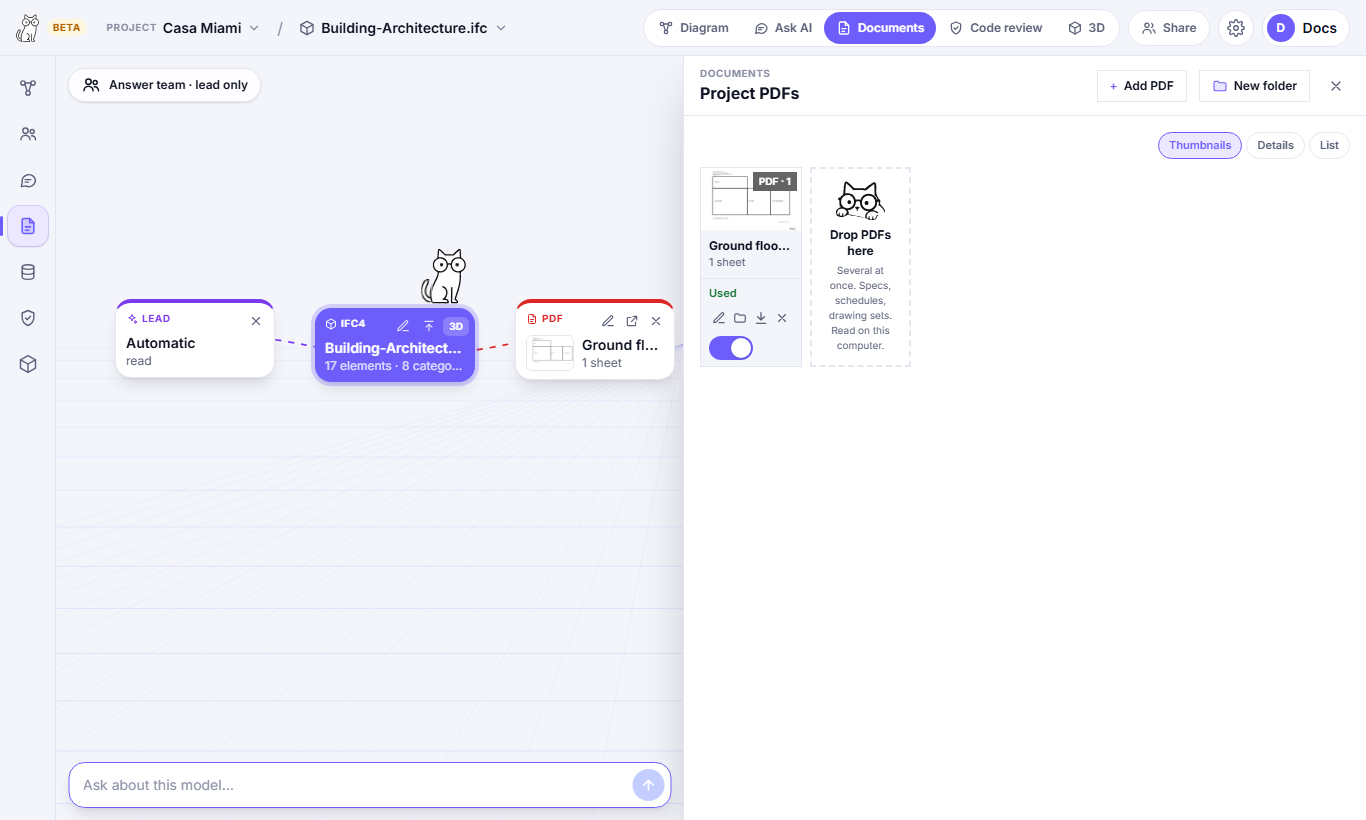
Add PDFs to the Documents tab, or drop them on the start card. Drawing sheets keep their rooms, areas, levels, notes, schedules, dimensions and labels, including rotated CAD sheets. Specifications become documents you can ask about, and PDFs holding tables can become repositories. A multi-page PDF asks first whether to slice it into sheets (plan sets) or keep it whole (tables, specs).
The list works like a file explorer:
- Folders, one level deep. Drag a PDF into one.
- Ctrl or Shift + click, the box on each PDF, Ctrl+A and Esc select several; a bar then moves them to a folder or into a new one, and they drag together.
- Three views: Thumbnails, Details, and List (one short row per PDF, no pictures).
- A PDF of a single sheet opens straight on its sheet.
In the viewer you can:
- Set the scale of a sheet, then measure: length, polylength, area and count. Give a height to get a wall's area, a depth to get a volume.
- Mark up: clouds, callouts, notes, shapes, pen and highlighter, with layers, undo and snapshots. The marks list is grouped by layer; an eye shows or hides a layer, and every mark says who made it and when.
- Measure areas by material from the legend, using the eyedropper (exact on vector PDFs, approximate on scanned ones).
- Download the marked-up PDF, or the marks as a spreadsheet.
- Chat beside the sheet, or ask about an area.
When a project has a 3D model, questions from a sheet cross the model's figures with the drawings and say where they disagree and which looks out of date.
Code review
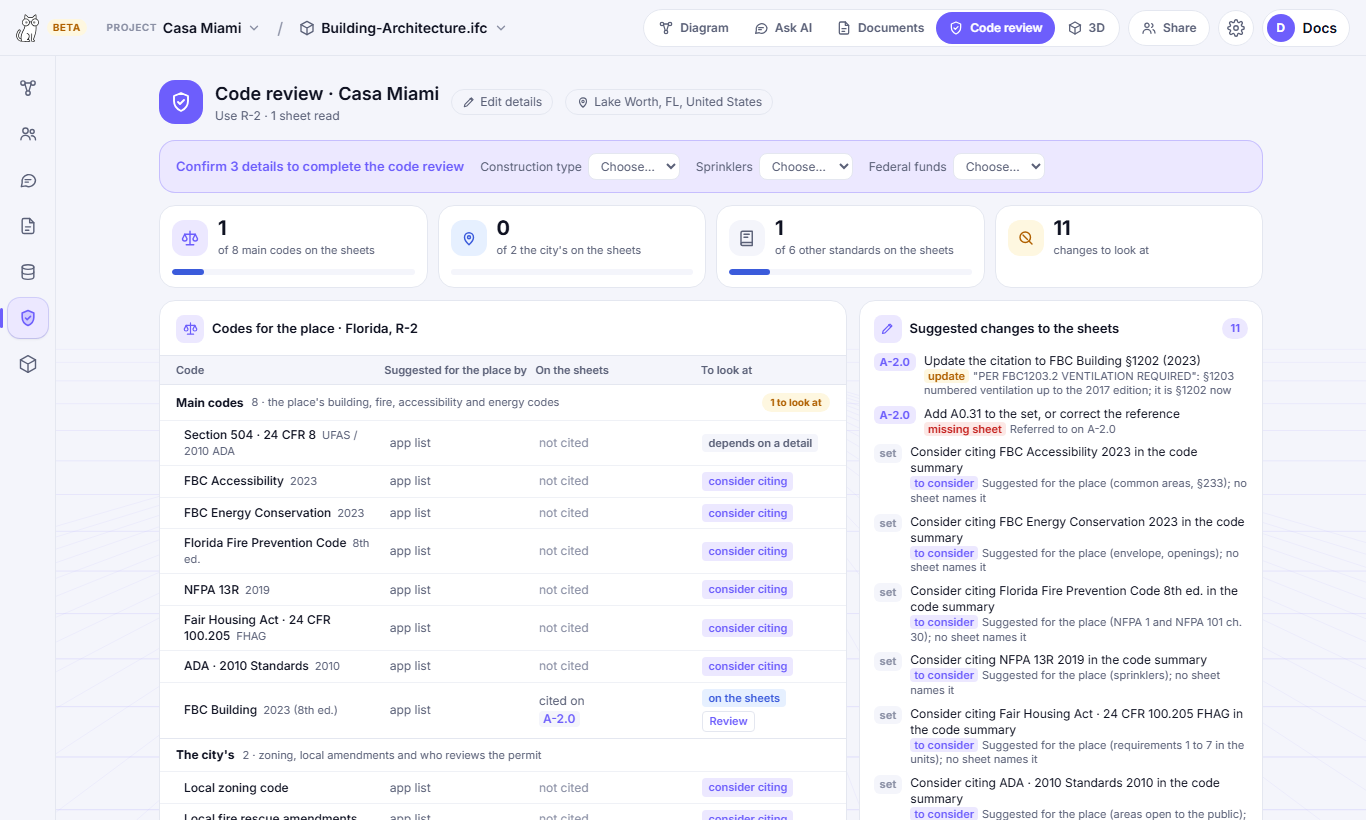
The Code review tab lists the codes to consider for the project and what its sheets say about each. It is calculated from your sheets, without AI, except the online research below.
- 1Confirm the place: country, state, city or the site's address. Check Aaron reads it from the sheets and you confirm or correct it.
- 2Answer what the sheets don't say: use, construction type, sprinklers, federal funds. Edit details changes them later.
- 3Read the codes table. Each code appears once, in three tiers: main codes, the city's, and other standards (folded).
- 4Press Review beside a code to open the sheet that cites it, with the review question already written in its chat.
Each code answers two questions: why it is suggested for the place, and how it appears on the sheets (cited, out of date, not found). The tab also shows sheets that are cited but missing from the project, checks against the 3D model, the open findings of sheet reviews and suggested changes.
Works in the US (with the Florida lists), Brazil, Portugal, Spain, the UK and the EU base, and for any other place from what the sheets cite. Research online reads the codes in force at the place, with their sources; it counts as one question on your monthly use.
A sheet opened from the review shows clouds in a Code review layer, only where something is missing or wrong. They are for this visit only and are never saved on the PDF.
Codes are suggestions to consider, never requirements. A code cited on the sheets doesn't mean it must be followed, and one not cited doesn't mean it is missing. Confirm with the authority having jurisdiction.
3D models (IFC)
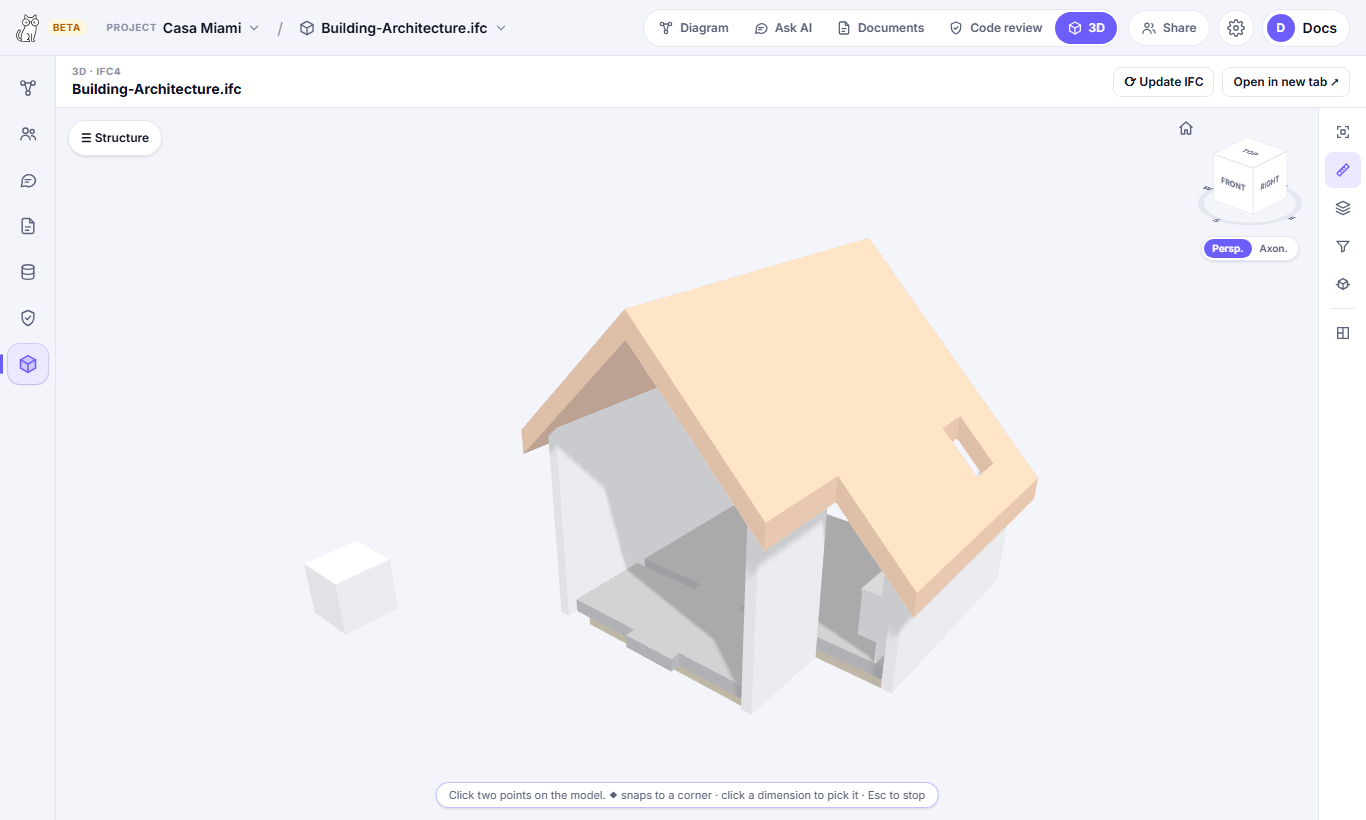
Upload an IFC (IFC2x3, IFC4 or IFC4.3). Large models are drawn in batches so the page stays responsive, and the geometry is kept in your browser so the next opening is quick.
- Click an element to select it; its card lets you ask about it.
- Filter by category to hide or isolate walls, slabs, MEP and so on.
- Cut a section at a level, along the length or across the width, and flip it.
- Use the measuring tool to take distances on the model.
- Overlay several models of the same project.
Property-set and quantity values are shown in the project's units, unconverted.
Tools reference
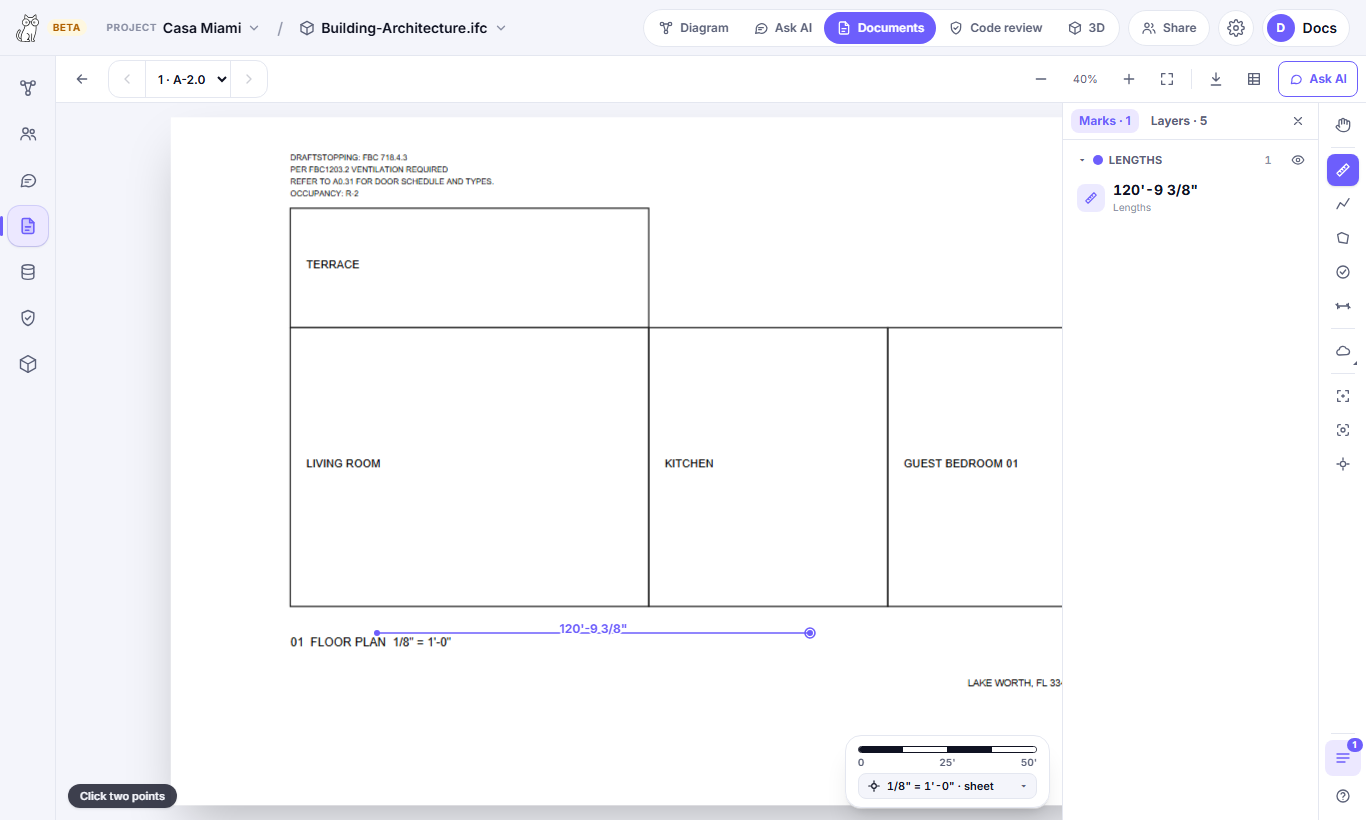
The PDF viewer keeps its tools on the right. Press the key shown to pick a tool; Esc leaves it and Ctrl+Z undoes.
Measure
| Length | L | Click two points. |
|---|---|---|
| Polylength | W | Click each point along a wall or run; double-click or Enter to finish. |
| Area | A | Click the corners; click the first point or press Enter to close. |
| Count | N | Click each item to count it; Enter or Esc finishes the count. |
| Dimension | Shift+D | Click both ends: the length is written on the sheet, with ticks. |
| Calibrate | K | Click both ends of a known length and type it in feet and inches. |
Mark up
| Cloud / Cloud+ | C / Shift+K | Two opposite corners, then a note; Cloud+ also places the note. |
|---|---|---|
| Callout | Q | Click what it points at, then where the text goes. |
| Note | M | A sticky note, shown when opened. |
| Text Box / Typewriter | B / T | Text in a box, or typed straight on the sheet. |
| Pen, Highlight, Eraser | D / I / Shift+E | Draw freehand, highlight, or erase strokes. |
| Line, Arrow, Arc, Polyline | Shift+L / A / C / N | Lines and curves. |
| Rectangle, Ellipse, Polygon | R / E / Shift+P | Shapes. |
| Image, Flag | Shift+I / Shift+F | Place a picture (or paste one with Ctrl+V), or a named flag. |
Ask and share
| Ask about an area | S | Outline a room or detail and ask about it. |
|---|---|---|
| Snapshot | G | Copy an area as a picture; Ctrl+V pastes it on a sheet. |
| Pan | H | Drag to move, scroll to zoom. |
The 3D view has its own tools on the right edge:
| Home view | Fit the whole model. | |
|---|---|---|
| Measures | Click two points on the model (it snaps to corners); click a dimension to pick it. | |
| Filters | Show or hide categories, or show only the elements you pick. | |
| Section cut | Cut the model at a level, along its length or across its width; flip the direction. | |
| Projection | Switch between perspective and axonometric; the view cube turns the model. | |
| Models overlaid | Show several models of the project together. | |
| Search elements | Find an element by name; selecting one lets you ask about it. |
Sharing a project
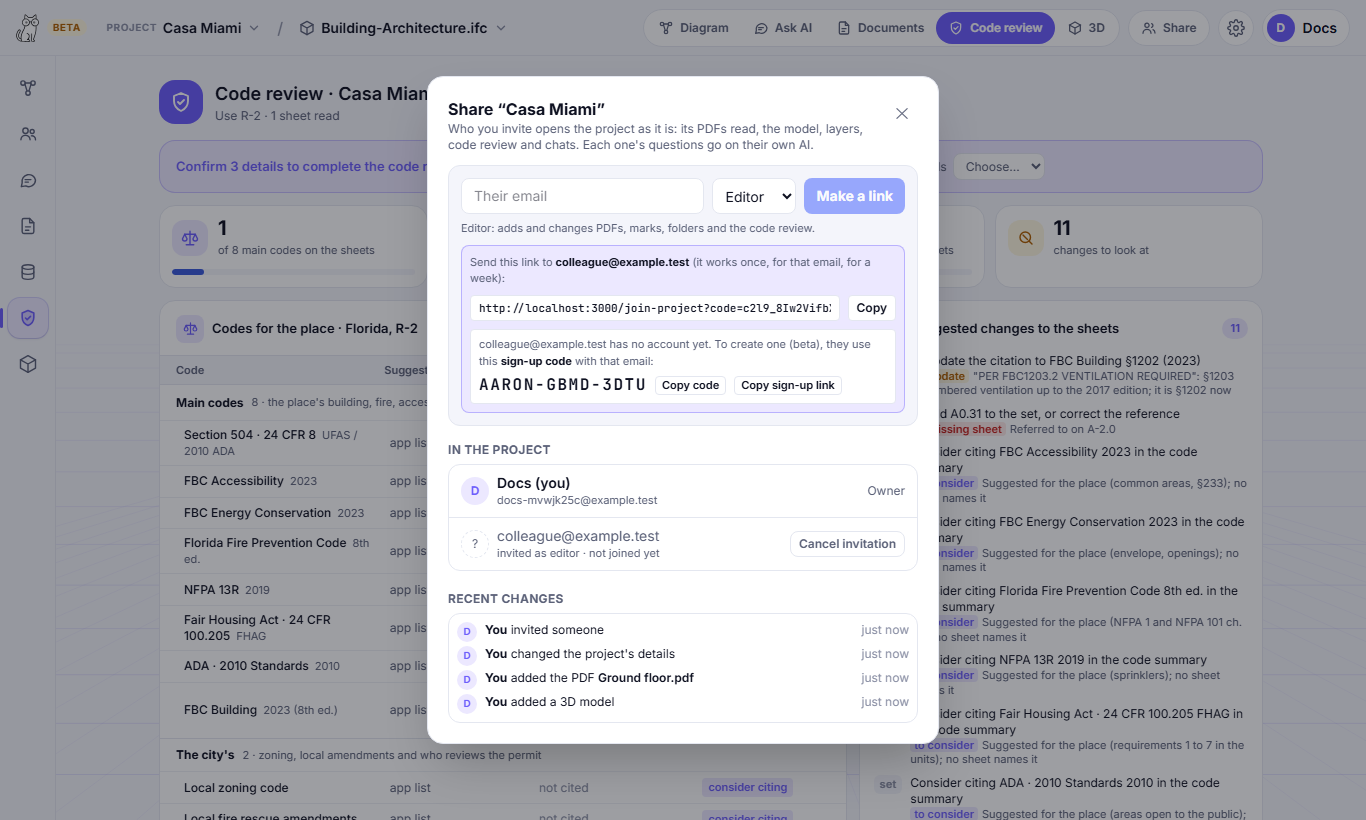
Press Share in the top bar and invite someone by email. They get a link, good for one use and one week, and join as:
- Editor: changes PDFs, marks, folders and the code review, and asks Aaron.
- Viewer: sees everything and asks Aaron, but changes nothing.
A shared project appears under Shared with me, and each person asks on their own AI and allowance. Only the owner invites, removes people, cancels invitations and deletes the project; anyone else can leave it.
Every mark says who made or last changed it, each PDF who added it, and Recent changes in the Share dialog lists what happened in the project lately. Inviting someone who has no account also gives them a one-time sign-up code, in the email and in the Share dialog.
Repositories
A repository is a table kept as data: costs, a city's code, zoning and more. Any table (a spreadsheet, a PDF table, a live spreadsheet link) becomes one light format that holds data only: Check Aaron never keeps the original file or its pictures.
- 1Create a repository from Repositories or the project, and import the table.
- 2Open it in your project so it is available to the model.
- 3Link products to elements in 3D, or let Check Aaron match them.
- 4Ask cost questions: they cross your prices with the model's quantities. A Municode link pasted in the project is read once into a zoning repository.
Repositories are private: only your account reads them.
Exporting your work
- Answers as PDF, or as BCF issues to take into other BIM tools.
- The IFC with your products written onto the elements.
- Marked-up PDFs and marks as spreadsheets.
Your own AI account
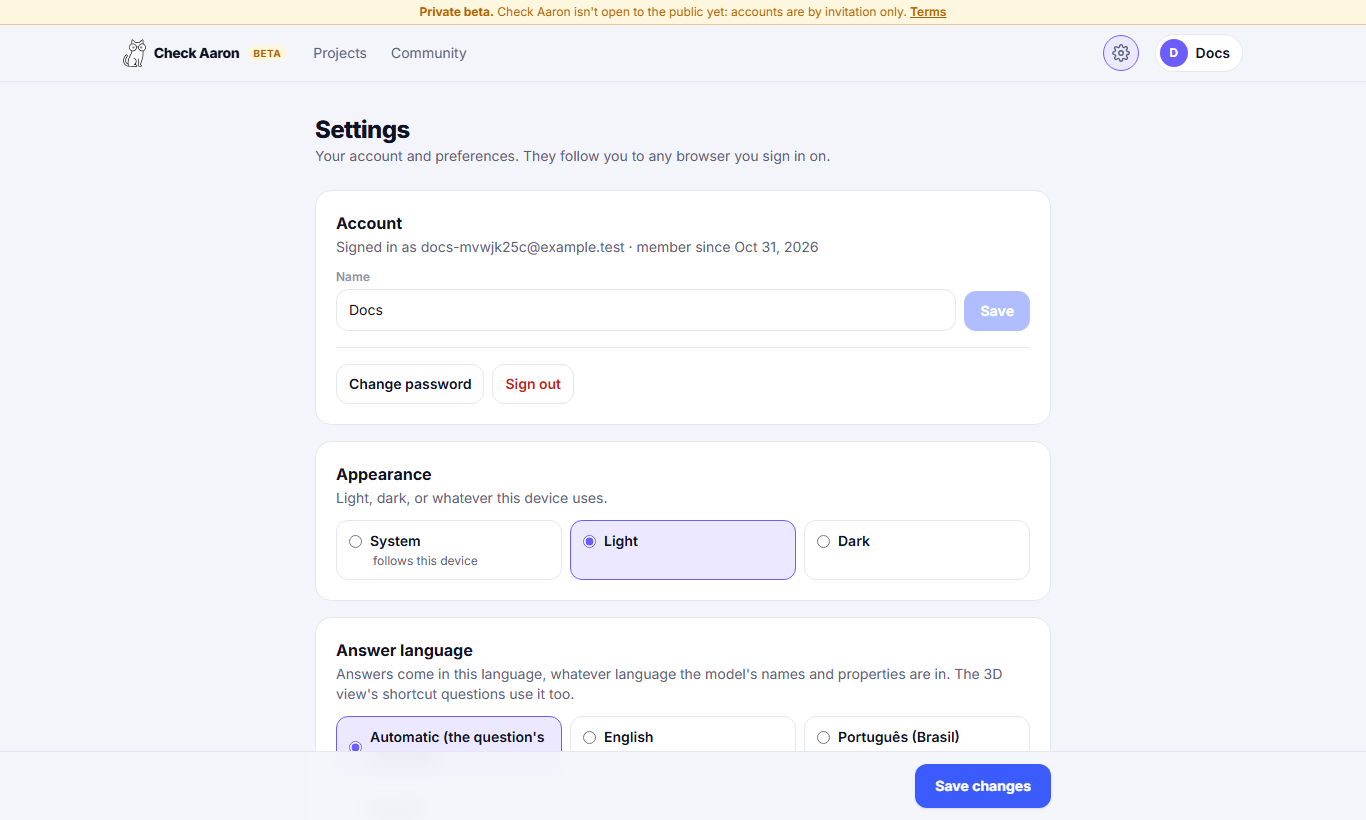
By default questions use the AI included in your plan, and the top bar shows how much of the month you have used and when it renews. You can connect your own AI account instead and pay that provider directly:
- OpenRouter: sign in with one click.
- OpenAI, Anthropic, xAI, Google or Perplexity: paste an API key.
Once connected, pick which of its models answers (the lead) and which check the claims. Questions on your own account are not limited by the month's allowance. Keys are stored encrypted and never shown again. If a model of your own account times out, switch the lead back to Automatic.
Under Settings you can also set the answering language and the theme, and connect a Speckle token.
Connecting other apps
Build and Enterprise Custom plans can connect other apps and AI assistants to the MCP server (its address is in Settings). Through it they list your projects, read a model's overview, ask questions and search your repositories, using your account.
- claude.ai and other apps that sign in: add a custom connector with the server address. No key needed: you sign in on Check Aaron and allow it. Settings lists the apps you allowed, and you can stop any of them.
- Cursor, VS Code, Claude Desktop, Claude Code: use an API key (it starts with aar_), created in Settings, sent as a header.
Anything reached this way is still only your own data.
Plans and storage
Plans are a subscription, not a meter: you see how much of the month you have used, never a bill per question. Start with a 30-day free trial, or pick a plan from day one. Enterprise Custom, for teams of up to 10 sharing one allowance, is available soon.
Storage is counted per account. Deleting a project, model or document frees its space.
Privacy and your data
- Your files are read in your browser; Check Aaron keeps them for you and nobody else sees them, apart from people you invite to a project.
- Only what a question needs goes to the AI that answers: the figures, the text of the sheets and, when it must look at a drawing, its picture. Never the files themselves.
- If you live in the United States (you choose the country when you sign up), the AI runs only on US hosts, with zero data retention. Elsewhere, on the cheapest host with zero data retention, which may be in another country.
- On the web, Check Aaron only looks up public texts of the codes for your place (the code, its edition, the city). Never your files, your figures or your project's name.
- Your data is never sold and never used to train AI models.
- You can delete projects, models, documents, questions, keys and your account at any time.
Troubleshooting
- A question says the AI is unavailable: the month's allowance may be used up. Connect your own AI account in Settings to keep asking, or wait for the renewal date.
- A model of your own AI account times out: choose Automatic as the lead.
- A large model looks slow to open: very large IFCs are read once; the next opening uses what your browser kept.
- A measurement is off: check the sheet's scale first, then measure a known dimension to confirm.
- Forgot your password: use the link on the sign-in page. It sends a one-time link.
- An invitation link doesn't work: it is good for one use and one week. Ask the owner to invite you again.
Anything else: write to hello@checkaaron.com, or see the Terms and Privacy pages.